
 KeyLen Finder Help
Using KeyLen Finder
KeyLen Finder builds a search index of the folders you choose, on your Mac. This page takes you from choosing a folder to finding a file again — and covers what to do when something does not work.
What Finder does
KeyLen Finder builds a search index of folders you choose, so you can find a file from a word you remember instead of the folder you filed it in.
Everything happens on this Mac. The index stays here, and Finder has no network access.
To get started, you need two things: a folder to search, and an index of it. The next two sections cover each in turn.
Add a folder
Choose Add Search Location…, then pick the folder you want Finder to search.
Finder asks macOS for permission to read that folder. It never asks for permission to change anything in it.
You can add more than one folder — one per area you want searchable. Finder looks inside the folders you add and nowhere else.
Adding a folder does not start indexing. Nothing is scanned yet. That is the next step, and it is yours to start.
Build the index
After you add a folder, Finder shows Prepare to Build Your Search Index. Choose Start Indexing to begin.
The first build reads the folder and records what it finds. If you have a lot of files, it can take a while. You can keep using your Mac while it runs — search becomes available when the index is ready.
If you choose Later, nothing is indexed yet. You can start the build whenever you want.
Until you choose Start Indexing, search will not find anything in that folder. If you have added a folder and searches come back empty, this is the first thing to check.
Search
Type what you remember into the search field and press Return. That can be part of a file's name, or a phrase from inside a document.
Finder matches your words literally. If you type compost, it finds files containing that text — not files about composting, and not near-misses with a letter typed wrong. Matching ignores capitalisation.
Every word has to match. Adding a second word makes the list shorter, not longer. If a search returns too much, add another word rather than starting over.
To search for an exact phrase, put it in quotation marks — "no dig" finds that phrase as a single string.
Finder looks at four things: the file's name, its path, the properties a document carries — title, author, company and similar — and the text inside the document.
Understand a result
Each result shows four things:
- the file's type icon
- the file's name
- why it matched — a short extract of the text, or the fields that matched
- the file's full path
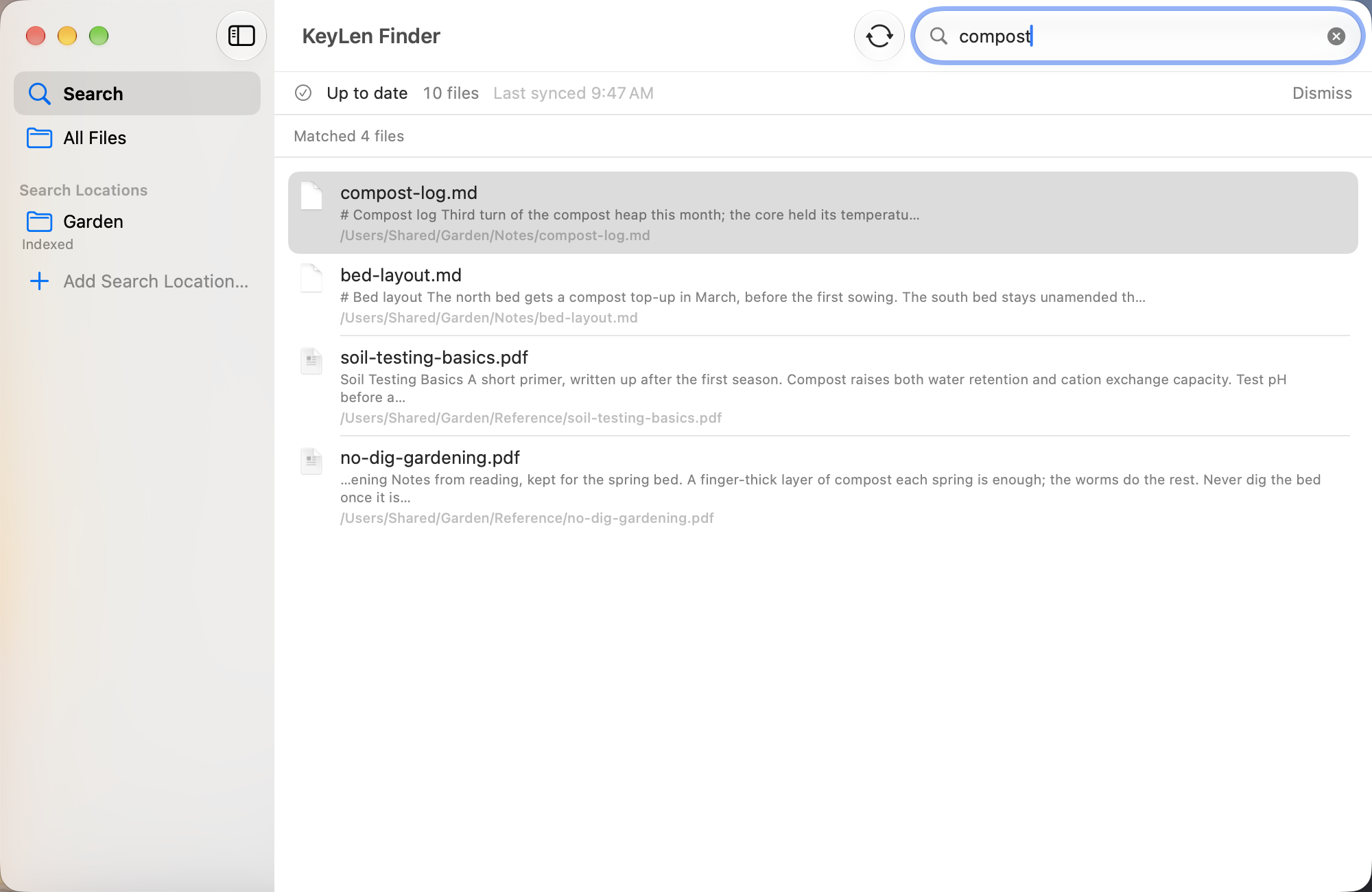
Select a result and use the File menu:
| Action | What it does | Shortcut |
|---|---|---|
| Open | Opens the file in its usual application | Return |
| Quick Look | Shows a preview without opening anything | ⌘Y |
| Reveal in Finder | Shows you where the file lives | ⇧⌘R |
| Copy Path | Copies the full path, to paste somewhere else | ⌥⌘C |
None of these change the file. Finder has read-only access, and there is no action here that edits, moves, renames or deletes anything.
Keep the index current
The index reflects your files as they were when it was last updated. When you add, change or remove files, the index needs updating before search reflects it.
To update it yourself, choose Sync in the toolbar. Files added since the last update are indexed, changed files are re-read, and deleted files stop appearing. Search pauses for that moment and resumes by itself.
To let Finder do it, open Settings and set Automatic Sync. There are three choices: Every 30 Minutes, Every Hour, or Off. The default is every 30 minutes.
Two things are worth knowing about the automatic setting:
- macOS decides exactly when it runs, so expect “about every 30 minutes” rather than a fixed time. A file you changed a moment ago may not appear straight away.
- It starts only after one successful update. Until you have updated the index once, nothing happens automatically.
Automatic updates may also pause while your Mac is on battery, in Low Power Mode, or running hot. Index Status in the app menu shows what happened and when.
What Finder can read
Documents. PDF, Word, PowerPoint and Excel files. Finder reads the text they contain, and the properties they carry — title, author, company and similar.
Text files. .txt, .md, .csv, .json, .xml, .log and .ini.
Source files. .py, .js, .ts, .java, .c, .cpp, .h, .hpp and .sql. If you add a folder containing code, its text is indexed like any other text.
Finder skips version-control and build folders such as .git, .svn and node_modules, and text is read only from files up to a certain size. A file outside those limits can still be found by its name and path.
Scanned PDFs. A PDF is either text or a picture of a page. A text PDF stores the words themselves, and Finder indexes them. A scanned PDF stores an image with no text inside, so there are no words to index — and V1.0 does not read text out of images. A scanned PDF is still found by its filename and location.
That is a limit, not a fault. Nothing has gone wrong, and nothing has been lost.
If something is not working
I added a folder, but searches find nothing.
Check that the first build has been started and finished. Adding a folder does not start indexing — choose Start Indexing on the screen that follows. While a build is running, search is not yet available.
A scanned PDF cannot be found by the words inside it.
Finder reads text that is already stored in a file. A scanned PDF is a picture of a page with no text saved inside it, and V1.0 does not read text from images. It can still be found by its filename and location.
I changed a file, but Finder has not caught up.
The index updates when you choose Sync, or on the automatic schedule. macOS decides exactly when the automatic update runs, so it is “about every 30 minutes”, not a fixed time.
Automatic update does not seem to be running.
It starts only after the index has been built and updated successfully once. Until then, choose Sync yourself. It may also pause while your Mac is on battery, in Low Power Mode, or running hot.
I removed a folder, but an old result still appears.
Removing a search location stops Finder searching there, but the entries already in the index stay. Removing a location never deletes your files.
Finder will not find a similar word.
Matching is literal. Finder finds the characters you type and nothing else — no related words, and no corrections for a typo.
The text inside a file is not searchable.
Finder reads text from the formats listed in What Finder can read. Other file types are indexed by name and path only, and text is not extracted from very large files.
Privacy and support
Finder does its work on this Mac. The index stays here, nothing you index is uploaded, and there is no account to create. Finder has read-only access to the folders you add, so it can look at your files but cannot change, move or delete them.
For the full detail, see the KeyLen Finder Privacy notice.
If something is not working, open Index Status from the app menu first — it shows whether the index is up to date. If that looks right and the problem remains, write to support@keylen.com.cn and tell us what you searched for and what you expected to see.
For privacy questions specifically, write to privacy@keylen.com.cn.